PBI Email Notification V2
Overview
The PBI Email Notice System is an optional, automated system that sends emails to PBI attorneys. The first part of the system notifies attorneys of cases awaiting assignment. The second part of the system notifies attorneys of the need for updates to cases.
In the first portion, the system sends emails notifying the attorneys of cases waiting for acceptance on the PBI Web Portal. It sends a digest email—an email that has a list of cases that are selected using the attorney’s preferred geographical area and legal subjects.
The attorney may choose the frequency of those emails using preferences in the PBI Web Portal. Emails can be sent daily, weekly, or monthly. The system tracks the last digest email sent to the attorney and does not send another until the selected time. The email only lists those cases available at the time the email is sent.
Related to the waiting cases email, the system can also send “out-of-band” emails. In a client record that has a pressing deadline or are an emergency, staff can choose to send an “out-of-band” email related to that single client record. These special emails are only sent to attorneys who have preferences matching the case’s type and location. They are sent regardless of the lawyer’s preferences for receiving digest emails. So, even though an attorney should not receive a digest email until the following month, this email will still be sent immediately.
The second part of the system sends emails to attorneys when a case has not received update information for a period of time. Most organizations have policies that require some form of case update on a schedule, for example every 60 days. This helps keep a case from becoming stale and also ensures timely closure. Some organizations use PBI Time, Case Notes, or Compensated Slips to track the last update. The system may be set to send emails as frequently as weekly.
Emails from both portions of the system are tracked in two ways. First, the lawyer’s contact information gets an entry showing that the lawyer was sent an email about the case. Second, within the case itself, an entry is made in the email table showing the email was sent to the attorney about the case.
Each portion of the system has a “test” mode. This allows you to setup and test the system without generating a large number of emails to attorneys. You can also completely disable either or both portions of the system from within Prime.
Setup
PBI Web Portal Setup
The system works with the PBI Web Portal. That portal must have the appropriate settings made, especially with regard to the email facility used to send notification emails:
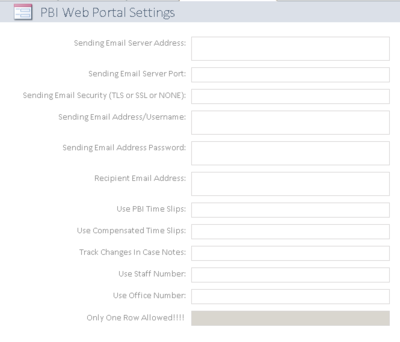

The email settings here are used to send email to PBI lawyers as well as send notification to staff in the event of a problem. These settings must be correct and working for the system to be able to send email.
PBI Email Notice System Setup
The PBI Email Notice System has a separate set of settings. These include the information about the PBI portal location and name:
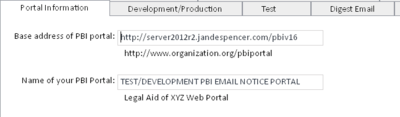

The base address should point to the plain web address that users use outside the organization. So, if you would tell them to go to “https://pbiportal.organization.org”, that’s the address that should be entered here. The name of the portal should include your organization’s name and “PBI Email Notice Portal”, or something like that. This information is used to send notifications of problems in the system. This immediately informs you which system has experienced a problem.
Development/Production Settings
You can disable the case email feature by checking the “Disable the Email Case Notices” checkbox. This disables the normal emails to attorneys as well as the test system. No emails will be sent out. You have the ability to put the system into test/development mode:
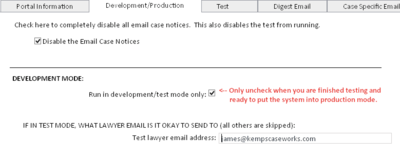

When checked, the system will only send email to the test lawyer email address shown. That means the attorney in the system with that email address (hopefully a test lawyer account) must meet all the requirements to be sent an email: on panel, an email address, subjects and counties entered, username for the PBI Web Portal, not opted out from any emails, and the county and subject must match a case that is waiting for assignment.
Test
Test emails (either standard/digest or case specific/out-of-band) may be sent:
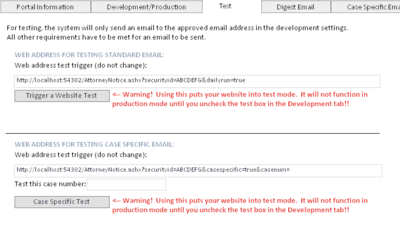

The web addresses allow the front end to trigger the automated system. For a case-specific email, you must enter a valid case number. Again, that case must fit the appropriate requirements: waiting case type, open, etc. Test emails are only sent to the test email address.
Standard/Digest Email Settings
You can change the wording used in the digest email:

The standard email setup is shown, starting with the email subject. Items that are not changeable are shown in square brackets. Emails are sent in HTML format and should include appropriate HTML formatting marks (e.g.,
).
Case Specific/Out-of-band Email Settings
You can change the wording used in the out-of-band emails:
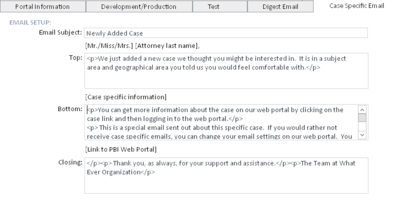

The standard email message setup is shown, starting with the email subject. Items that are not changeable are shown in square brackets. Emails are sent in HTML format and should include appropriate HTML formatting marks (e.g.,
).
Update Notice Settings
The Update Notice portion of the system has a separate set of settings.
General Settings
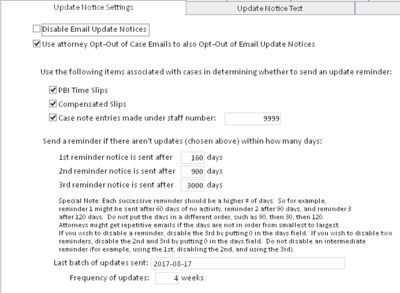
Within the “Update Notice Settings” tab, you may select whether to disable the update emails. When the system is triggered, if it is set to disabled, no emails will be sent. You may also select whether the update emails adhere to the attorney’s decision to opt-out of emails. If this checkbox is left blank, attorneys will receive update notices whether they have opted out of emails or not.
Your organization may choose what client entries to use to determine the last time a case was updated. Your options are (1) PBI Time Slip entries, (2) Compensated entries, or (3) Case note entries made by a particular staff number. When the system runs, it will compare the items selected against the date range entered to determine whether an update email should be sent. Any one or more of these three items may be selected for use.
There are three reminder periods that may be set. Each successive reminder should have its period set to a higher number of days then the prior. So, for example, the first reminder might be sent when a case hasn’t been updated for 60 days. A case might fall within the second reminder set when it hasn’t been updated for 90 days. Then it would fall into the third reminder set when it hadn’t been updated for 120 days.
An organization might also decide to only have one reminder group. In that case the first reminder notice might be sent after 90 days, and the second and third groups would be disabled by setting them to zero days. Every case over 90 days without an update would receive a notice.
Finally, the system tracks the last time update emails were sent and shows that date. You can choose the number of weeks to wait between email updates.

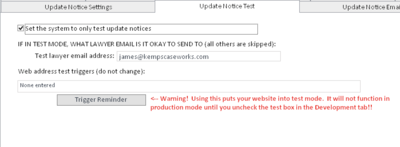
Update Notice Test Set the update notice system to run in test mode by selecting the checkbox. When selected, only an email that would go to the test lawyer email address will be sent. Again, the case and attorney settings must be such that the email would otherwise normally be generated (e.g., the case has not had updates for a period of time). The web address is what is used to trigger a test of the system and to run immediately, instead of waiting for the normal daily trigger from within Venture. Click the “Trigger Reminder” to run the test immediately.

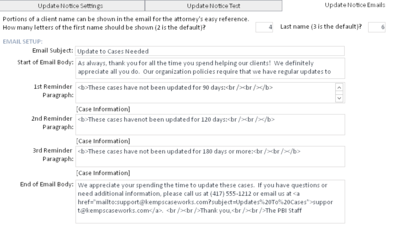
Finally, set the text to show up within the email. You can determine how much of the client name to show in the email by putting numbers in the corresponding boxes.
Remember that an attorney should only receive one email with a list of cases that fit within the first reminder group, another list of cases within the second reminder group, and a third list of cases within the third reminder group. Emails are sent in HTML format, so feel free to use HTML codes to format the email (e.g.,
for hard returns, for bolding, etc.)

Waiting Cases Email Processing
When hosted by Venture, the PBI Web Portal begins the automated process of sending out emails. Once each day, the system looks to see if there are waiting cases (case type = “W”) that are not closed. If there are, the system attempts to match their subject and problem location with an attorney whose subject and county selections match. The attorney’s email address is checked to make sure it is a valid email address. If it is not a valid email address, an email notifying staff of that error is sent.
Where there are matches, the attorney’s history of receiving emails and preference for how often they want to receive theses notifications are examined. If the attorney has already been sent an email within the frequency (for example, the attorney’s selection was weekly, they received an email on Monday, and it is Wednesday), they will not receive another email. If the attorney has not been sent an email within the frequency, an email is generated for that attorney with all the waiting cases matching their subject and county preferences.
When the email is successfully sent, entries are made both in the lawyer contact table and the case email tables indicating the email was sent. If the email send fails, due to setup problems, an email is sent from the Venture system to the designated staff member notifying them of a problem. This notification is also sent to the KCW support group for monitoring and separate notification. This email process utilizes a separate email system outside of the organization’s setup, to bypass any internal issues that may be causing problems with sending email. [These features are not available in a self-hosted system.]
Out-of-band Email Processing
These emails are prompted by a staff person while in a particular case. Great care should be taken in providing guidance when such an email should be sent. The most common complaint we hear from PBI Attorneys surround the sheer number of emails they get on a daily basis. We would suggest that an organization’s guidelines provide that these emails only be sent where a potential case has a pending deadline or is an emergency. A protocol requiring a manager’s approval may be appropriate.
When a staff is in an appropriate case, they can click on the “Send Case Specific Email” button (the button text may be different in your system). That causes the Email Notice System to send a case-specific, out-of-band email for that case. Only attorneys who have
1. not opted out of out-of-band emails, and 2. whose selections in subjects and counties match that case,
will receive an email. When the button is pressed, the system logs that an out-of-band email has been sent for that case. Future attempts to send out-of-band emails for that case will be ignored. This helps to lessen the likelihood of 1. Attorneys receiving too many emails, and 2. Erroneously sending additional emails by double or triple clicking on the button.
Emails
Waiting Cases Emails sent to attorneys look like this:

An attorney receiving this email can click on the “Click here” links in the email and (if they are logged on to the PBI Web Portal) be taken straight to the case review to accept the case. If they are not logged on to the PBI Web Portal, they are taken to the logon page, and then to the case review.
Case Update Emails look like this:
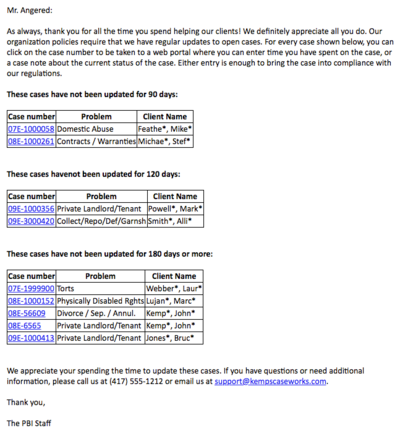

Again, the attorney may click on the case number link to proceed to the PBI Web Portal to make a new case note entry, time entry, or compensated entry to update the case.
Requirements
The PBI Email Notice System works in tandem with and as a subpart of the hosted version of Prime 16 and the PBI Web Portal. Because it is built for the hosted version of Prime 16 system, it utilizes many features only available within Venture Technologies. These features include the automated nature of the system as well as maintenance, management, monitoring, and failure notification. In the hosted environment, all requirements are met by the Venture system (with the exception of email requirements). Email notification takes place using your organization’s email system. An appropriate SMTP email server, together with an account that can be used to send email, is required to provide that feature. Outside of the options available within the Prime frontend, the system is NOT modifiable by the organization. Modifications to its operation must be provided by KCW staff.
Organizations wanting to host this system outside of Venture will be responsible for setup and automation of this system. Again, outside of the options available within the Prime frontend, the system is NOT modifiable by the organization. Modifications to its operation must be provided by KCW staff. In a self-hosted environment, in addition to the requirements of Prime 16 and the PBI Web Portal, the following additional requirements must be met: • Access 2010, 2013 or 2016 • SQL 2008 R2 or SQL 2014 • Server 2012 R2 with: o IIS o ASP o .NET 4 properly installed and registered Email notification takes place using your organization’s email system. An appropriate SMTP email server, together with an account that can be used to send email, is required to provide that feature. A few additional hours of installation are required to reconfigure the system to work outside of Venture. These modifications will be made before the system is provided to your organization.
Change List
08-17-2017 – Modification of requirements for self-hosted systems, removing the SMTP relay server system; updated information with the new update portion of the system.
08-08-2017 – Documentation for new Version 2 started; added information about disabling the email case notice feature.