Office 365 Calendar Sync: Difference between revisions
Jspenceratty (talk | contribs) No edit summary |
Jspenceratty (talk | contribs) No edit summary |
||
| Line 25: | Line 25: | ||
After the first two syncs, synchronization should be much faster. Since only changes on either side are transferred, there will be much less to copy. The first couple of syncs should be made using the O365 Sync Start Page. This page is accessed using the top-line menu bar and going to SearchCustom Search and clicking on the Exchange Sync button: | After the first two syncs, synchronization should be much faster. Since only changes on either side are transferred, there will be much less to copy. The first couple of syncs should be made using the O365 Sync Start Page. This page is accessed using the top-line menu bar and going to SearchCustom Search and clicking on the Exchange Sync button: | ||
[[File:CalSync4.png|400px]] | [[File:CalSync4.png|400px]][[File:Screen Shot 2019-08-21 at 11.19.15 AM.png|400px]] | ||
A user may press the “Open O365 Sync Details” button to get to the original setup page. Pressing the “Sync” button will start the synchronization process. The user is prompted for his password. [Note: The sync is only performed for the user who is currently logged into Prime.] The system, depending on the settings made for the user, will then sync to and from O365/Prime. | A user may press the “Open O365 Sync Details” button to get to the original setup page. Pressing the “Sync” button will start the synchronization process. The user is prompted for his password. [Note: The sync is only performed for the user who is currently logged into Prime.] The system, depending on the settings made for the user, will then sync to and from O365/Prime. | ||
Revision as of 16:20, 21 August 2019
Prime 16 utilizes technologies made available through Office 365 (O365) to provide users with the ability to synchronize their Prime and O365 calendars. This new sync is very easy to use in Prime.
Setup for individual staff members is very easy. Within the staff member forms, go to the Calendar Setup tab. Insert the appropriate path to the Office 365 website (shown as https://outlook.office365.com in the example below) and the O365 username (shown as test@kempscaseworks.onmicrosoft.com). To test that the entries are valid, click the test button and, when prompted, enter the user’s O365 password.


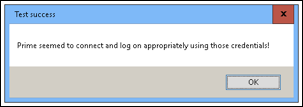
The system will use the entries to attempt to contact the O365 system and test the username and passwords entered. If Prime believes the settings are correct, a message is shown indicating the test seemed to work.

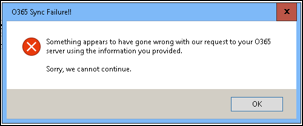
A failure results in a failure message:

Set the time zone for the staff person using the dropdown list. Determine the method of synchronization desired. For example, if the staff person wants to sync from O365 to Prime, and from Prime to O365, check both boxes. If the staff person only wants to sync from O365 to Prime, select that single box. If the staff person only wants to sync from Prime to O365, select that single box.
Syncing only one way (i.e., choosing only one checkbox) will result in inconsistent entries in both calendars. For example, when syncing only from Prime to O365, entries in Prime will be reflected in the O365 calendar. Changes to those entries will also be reflected in the O365 calendar. New entries or changes to the O365 calendar will not change any entries in Prime.
The first two times a user synchronizes their calendar will take longer than successive syncs. The reason for that is the initial syncs require getting all entries from both calendars and making sure they are copied to the other calendar. Because entries are not yet tied to one another, entries in the calendars may appear to duplicate.
To illustrate, before synchronization, a staff member would enter a calendar item in Prime, and then enter that same item in O365. Neither O365 nor Prime associate those entries as the same entry. Rather, each entry is treated as unique. When a sync is performed, the calendar item in Prime is added to the O365 calendar. The O365 item is added to Prime. Those entries may be for the same event, but O365 and Prime do not know that.
After the initial synchronization, new entries in either calendar should not appear to “duplicate” in the other calendar. Each entry, when synched, has its own unique identifier that each calendar understands. When a change is made in one location, the same change is made in the other using those unique identifiers.
After the first two syncs, synchronization should be much faster. Since only changes on either side are transferred, there will be much less to copy. The first couple of syncs should be made using the O365 Sync Start Page. This page is accessed using the top-line menu bar and going to SearchCustom Search and clicking on the Exchange Sync button:


A user may press the “Open O365 Sync Details” button to get to the original setup page. Pressing the “Sync” button will start the synchronization process. The user is prompted for his password. [Note: The sync is only performed for the user who is currently logged into Prime.] The system, depending on the settings made for the user, will then sync to and from O365/Prime.
As the synchronization progresses, updates are shown on this page, including the total number of items to synchronize, and how many are complete. Finally, the starting and ending times for the sync are displayed.
After the initial synchronization is performed by the user, and when exiting the system using the Exit menu option, a user will be asked whether he wants to perform a calendar sync. Answering “Yes” will initiate the calendar sync before exiting the system.
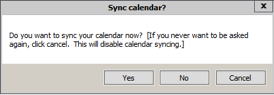

Answering “No” will avoid a calendar sync. Finally, clicking “Cancel” will indicate the user never wants to be asked again and effectively disables calendar syncing.
[Some limitations exist on syncing. Old entries are ignored. Only entries within the last few days and into the future are synced. Changes to old entries are also ignored. This helps improve the speed of syncing and limits bandwidth use. Additionally, because Prime is a standalone product, it is not a true “calendar client”. Moving O365 calendars or resetting the sync settings in Prime will cause all items to be synced and (potentially) duplicated. Synchronization only takes place when Prime is running and synchronization is triggered.]
The start and stop time in Prime and O365 are copied between calendars. Additionally, the “Note” in Prime is used as the title in the O365 entry and vice versa.
Two Factor Authentication
For O365 accounts that have two factor authentication (2FA) enabled on the account, you may have to set and use an application specific password to bypass the 2FA.