Client Satisfaction Survey
Prime 16 utilizes technologies made available through Venture Technologies and provides you with the ability to send your clients Client Satisfaction Surveys. This new survey feature is very easy to use in Prime.
The Client Satisfaction Survey system will send a client an email after their case is closed. If the client does not fill out the survey, the system will send two reminder emails asking the client to fill out the survey.
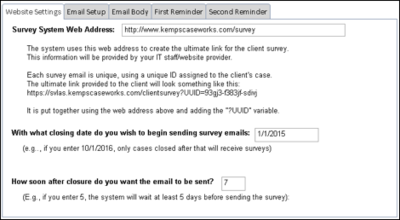
Setup the system using the five, simple tabs in the Client Web Satisfaction Setup screen. On the “Website Settings” tab, enter the base address of the website for your survey system. Determine the closing date for which you want to start sending emails. For example, if you start using the system on October 1, 2016, you may not want to send client surveys for cases that were closed in 2015. If you wanted to send surveys on cases closed after June 1, 2016, then you would enter “6/1/2016” in the closing date box. Finally, enter the number of days to wait after closing before sending the survey. This allows you some leeway in the event staff close a case and decide three days later to reopen it.

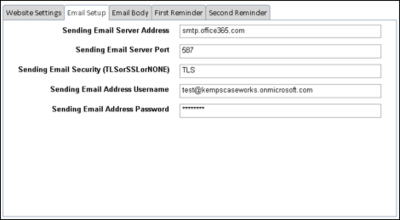
On the Email Setup tab, enter your organization’s SMTP settings to be used for sending email.

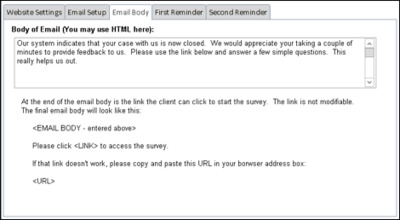
On the third tab, the “Email Body” tab, enter the body of the email to be send to the client. Keep in mind that the system automatically adds the link the client will click to start the survey. That link follows the entry you make here.

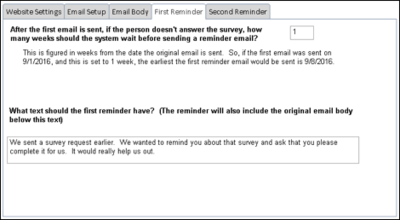
On the fourth tab, the “First Reminder” tab, enter the number of weeks you want to wait after the first email is sent before sending a reminder to the client asking them to fill out the survey. Obviously, a reminder is not sent if the client filled out the survey. Enter the reminder text you want in the email. The reminder will include the body from the first email.

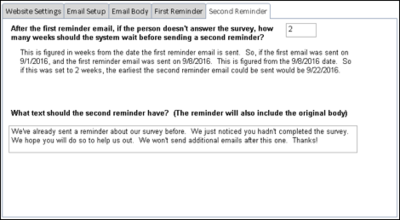
On the final tab, the “Second Reminder” tab, enter the number of weeks to wait from the first reminder before sending a second reminder to the client. Again, a second reminder is not sent if the client filled out the survey. Also enter the text you want put in the second reminder email.

You can set up the system for testing, using the “Test System” tab in the setup screen. Check the checkbox to set the system to test mode. In this mode, the system will not send emails to anyone except in the test case entered. The details of that case don’t matter—case type, closure, etc.—rather, it only needs an appropriate email address entered in it.
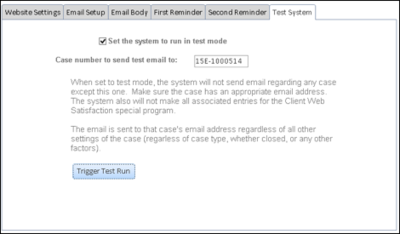

Click the “Trigger Test Run” to manually trigger the system to send emails. If the system is in test mode, it will send an email to the email address in the test case.
The survey, when completed, shows up in the client’s case, in Special Programs:
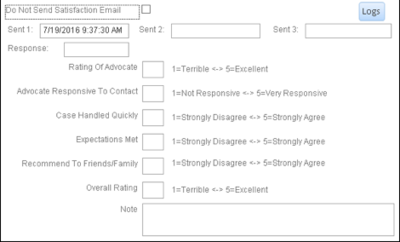

If, upon closing, or at the client’s request, you do not want survey emails sent to the client, simply check the “Do Not Send Satisfaction Email” checkbox. The system will not send a survey for this case.
The “Sent 1”, “Sent 2”, and “Sent 3” boxes show the dates and time that emails were sent to the client in this case. If the client has filled out the survey, the “Response” box will show the date and time the client completed the survey.
The rating boxes show the answer to the questions presented to the client, together with any notes the client made in the survey.
Clicking the “Logs” button will show any log entries the survey system made for this case. The survey system makes several entries and will note if it ran into problems in attempting to send an email to the client:
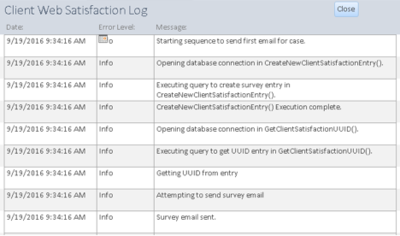

The system uses technology available on Venture to automate the process of sending emails to clients whose cases have closed.
Reports
There are a few reports to get survey answers from the system:
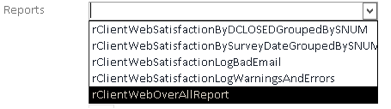

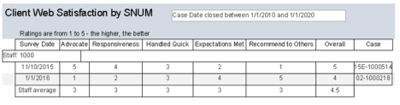
rClientWebSatisfactionByDCLOSEDGroupedBySNUM – a report that provides information grouped by staff number (together with averages) for cases that were closed within a specified range:

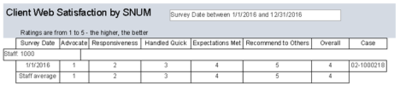
rClientWebSatisfactionBySurveyDateGroupedBySNUM – a report that provides information grouped by staff number (together with averages) for surveys that were entered within a specified range:

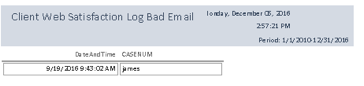
rClientWebSatisfactionLogBadEmail – a log report of instances where the system has detected a bad email address entered in a case in which the system would otherwise have tried to send an email; log is run by when the email was attempted within a specified range:

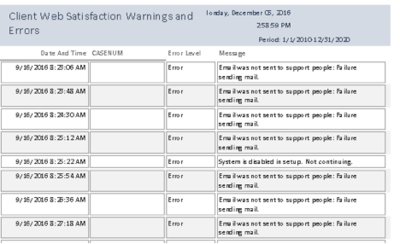
rClientWebSatisfactionLogWarningsAndErrors – a report of warning and error messages indicating the survey system attempted to perform an action and entered a problem doing so; this shows those log entries within a specified date range:

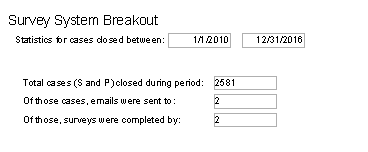
rClientWebSatisfactionOverAllReport – a report showing an overview of the cases closed, emails sent, and survey completed within a specific date closed range: