Automatically Add a Form Letter to Document Tracking as PDF
Many users have generated form letters using Prime. In the latest versions of Prime, it is easy to not only generate a form letter but also to save it as a PBF file. This article covers how to generate your form letter, save a copy of it as PBF file, make index entries, and open it up from within your case (or find it using the Document Search Screen). Form letters can be generated multiple places such as on the Client Intake or the Eligibility Screen.
Here we choose to generate a simple letter without modifications. (We can imagine the client had a problem with a fire in their apartment and we added text covering those facts.)

Once your letter is generated, it is simple to save it to a PDF format in your document tracking system. (A PDF file has a .PDF at the end of its name, such as JohnsLetter.PDF. It is a universal format that can be used by many different programs.) The key thing is to use the special Ribbon Bar that shows up once you generate the form letter. Notice how the special Ribbon Bar shows up when we print preview the letter.

If we choose archive, notice how we get a prompt that tells us the letter was saved inside of Document Tracking. Let’s check and see if it’s there.

Here we check if the document was saved in Document Tracking on the case by clicking the Document Tracking button on Page2 of the intake.

Notice how the Printed Letter folder was created in the case Folders list and the letter placed there.

If we click on the document, we can further index it using the Document Information form. This is useful for making the document easier to find and building a brief bank. I might say it was:
a. Brief Bank quality using the Priority field
b. A Letter by marking the Type as a LET for a letter
c. I could also add a note that said it was, ‘Opening letter dealing with a fire in the apartment.’
d. The category could be 63, which corresponds to problem code 63 in the list of approved codes.

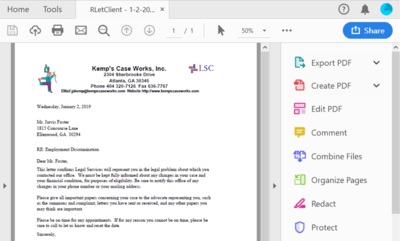
Clicking on the Open File button will open the PDF document and allow you to review it.
Note: Be sure to look at the bottom of the screen to see your PDF file program open up on the task bar. Click on it to preview your document. Here the program is Adobe Acrobat.

Let’s say we want to find a letter dealing with fires in apartments and we don’t know which cases dealt with this issue. We can find brief bank quality work by going to the Document Search Screen and looking for the word ‘fire’ in the notes. When the document appears in the screen, we can see it is brief bank quality since it has a number 1 under the docPriority field. Double clicking on the document will open it for review to see if the document would be useful in our current case.
