Web System Setup and Use
Using new technology available on ConvergeOne Technologies, you can now manage your own website.
Understanding the Structure
We have set up the website system on ConvergeOne in three separate parts. The first part is the “test” system. This is the portion that you will be able to modify and adjust to your needs. It is called “test” as it allows you to test your changes before you push those changes out to your web users. Modifications to this system may only be made from within the ConvergeOne system. Testing of this portion of the system may be performed from anywhere using a browser.
The second part is an update command. The changes made in the “test” system stay there until you tell the system you are ready for the “production” version to be updated. The update is scheduled to happen each night, but only runs upon your “update” command.
The third part is the “production” system. This is where your final website will be put to real use by users (whether staff, PBI attorneys, or applicants/clients). This is a copy of the “test” system once it is set to update.
Opening the “Test” System Website
To modify the “test” system, open Visual Studio (VS). Administrators have a Visual Studio link available to them in the portal. If you are an administrative user on ConvergeOne for your organization and do not see this icon, please contact us at support@kempscaseworks.com for assistance.
If you are taken to a license page, you will need to enter Microsoft account credentials to get a license to use this version of Visual Studio (it is free to use, you just have to have an account to get a license). If you already have a Microsoft account, use it as credentials for the license. Otherwise, go to https://visualstudio.com and click on “Sign In” at the top right. Choose to create an account from there. Once created, use that new account to get a license to use Visual Studio.
In the VS menu, click on File-->Open-->Website. This brings up the “Open Web Site” dialog box. Click on “FTP SITE” in the left column:
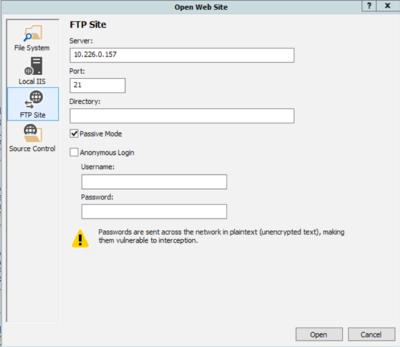

In the “Server” box, enter: ventureftp.kempscaseworks.com In the “Port” box, enter: 21 Ensure the checkbox is removed from “Anonymous Login”. Enter your unique username and password into the boxes. [The username and password will be provided to you by Kemp’s Case Works. This is separate from the normal ConvergeOne systems, so ConvergeOne staff will be unable to provide you with information on these items.] Then press the “Open” button. This will open your website. Use the features available within VS to modify, change, and add to your website.
Testing Your Changes
From within a web browser, go to the testing URL provided. The testing URL will look something like this: https://test.kempscaseworks.com/<mytestsite> [The site URL will be provided by Kemp’s Case Works. ConvergeOne staff will be unable to provide you with the site URL.]
Test the changes you have made to the website to ensure they are operating as you expected and desire. Once the changes do work the way you want, you may send an update command to the system. To do this, place a file in the root of your website named “update.txt”.
At the next update (typically at night to lessen the interference and interruptions caused to users), the system will update the “production” site with your changes.