Texting Using Prime 16: Difference between revisions
Jspenceratty (talk | contribs) |
Jspenceratty (talk | contribs) |
||
| Line 39: | Line 39: | ||
The "queued" status merely means that Twilio has gotten the text you want to send and is in the process of sending it. | The "queued" status merely means that Twilio has gotten the text you want to send and is in the process of sending it. | ||
==Reviewing Texts Sent On A Case== | ==Reviewing Texts Sent On A Case And Status Of Texts== | ||
To see what texts have been sent in a case, open the case file and click on the "Texts" button. | |||
[[File:TextClient9.png|300px]] | |||
The | |||
==Modify or Change Text Quick Entry== | ==Modify or Change Text Quick Entry== | ||
Revision as of 15:32, 31 May 2018
Have the need to send text messages to your clients from case management? Prime 16 can do it. Utilizing the technological capabilities of Venture Technologies and Twilio, Prime 16 now supports sending text messages to your clients and tracks those messages.
If your client doesn’t want to receive messages, all they have to do is text back a single word and Twilio prevents them from receiving texts. If they want to receive text messages again, they can send another single word and receive text messages again.
With technology provided by Venture Technologies, additional features include being able to review the status of the message as reported by Twilio (QUEUED/SENT/DELIVERED) and being updated when clients opt in and out.
The ability to send text messages is just one more of many, many improvements in Prime 16.
Send Client A Text Message
Open any client record. Make sure the client has a cell telephone number entered and marked as "Okay to Text".

Click on the "Send Text" button.

In the texting page, you will see the client's cell number in the top left and their case number in the top right. These are shown to ensure you are texting in the right case--and because these entries will be used to save texts sent to the client within the client file.

Use the Quick Entry to choose a phrase that may be repeatedly used by your organization.

Here, the first quick entry was chosen. For many quick entries, you may wish to leave spaces where information needs to be filled in. In this example, we presume an organization has many offices with different phone numbers. We have left the telephone number off, so it would need to be entered.

Text messages are limited to 160 characters. Once you have entered your text message, press the "Send Message" button to send the text. (If you decide not to send a text message, you can press the "Cancel/Close" button.)

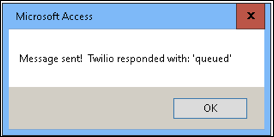
After pressing "Send Message", you should receive a box telling you the text message is queued: "Message Sent! Twilio responded with: 'queued'"

The "queued" status merely means that Twilio has gotten the text you want to send and is in the process of sending it.
Reviewing Texts Sent On A Case And Status Of Texts
To see what texts have been sent in a case, open the case file and click on the "Texts" button.

The
Modify or Change Text Quick Entry
Setup
Prime 16 utilizes technologies made available through Venture Technologies and Twilio to provide users with the ability to text clients. This new texting feature is very easy to use in Prime.
Twilio texting step-by-step setup example
Organizations can easily set up an account with Twilio, including purchasing a phone line. Settings within Twilio are set to point to a website made available within Venture Technologies to allow the update of text messages (such as whether the text was sent and delivered).
Some of the features that must be entered within Twilio include:


and


[The actual web address will vary and will be provided by Kemp’s Case Works after installation.]
Within Prime, input appropriate Twilio account information:
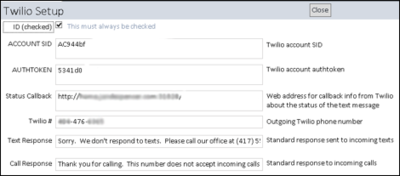

The setup is then complete. The “Text Response” entry is what is returned to a person, should they send a text to your Twilio phone number. The “Call Reponse” entry is what would be spoken to the caller, should they call your Twilio phone number.
Within the client record a new checkbox indicates whether the client has indicated it is okay to text to his cell number. If that box is not checked, the system will not text the client. Additionally some basic checks are performed of the cell area code and phone number to ensure they are an appropriate format. The cell area code should be a number, three digits long. The cell phone number should be in a format of XXX-XXXX:
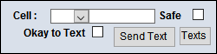

Pressing the “Send Text” button causes the text form to appear for entry of a text message:
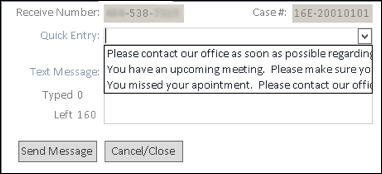

The “Quick Entry” drop down allows for the quick selection of a variety of standard text messages. Once selected, the message can be customized to include information such as meeting times, phone numbers to calls, etc. A text message can also be typed in the “Text Message” field.
To conform to standard text message requirements, only 160 characters are allowed. As a message is typed, the total characters used and those remaining is displayed. Once 160 characters is reached, no additional input is allowed:
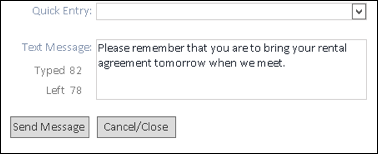

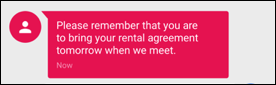
Pressing the “Send Message” button causes Prime to contact Twilio and request the text message be sent. The client should then receive the message:

Prime tells staff whether the message was accepted and the current status of that text message:

Pressing the “Texts” button in the client record will bring up the text messages that have been sent in a case:


Within a text message, the “Message Status” will show the status of the message from Twilio:
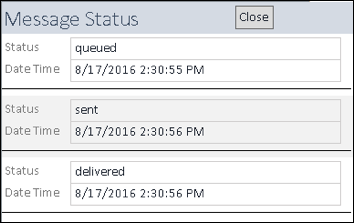

A status of queued is the initial status, indicating that Twilio has accepted the text message and will attempt to send it. A sent status indicates Twilio has sent the text message. Finally, a delivered status indicates that Twilio believes the message has been delivered to the recipient. A delivered status is not always provided. Some cell phone providers do not provide that kind of information. At best, an organization can only know that Twilio sent the text message. [Delivery should never be assumed, even with a delivered status.]
Twilio sends updates of text message status to the Venture Technologies website responsible for updating that information in Prime.
If a client texts to the Twilio phone number, Twilio queries the Venture Technologies website requesting instructions on what it should do. The website queries Prime for the information entered in the Twilio setup. The response text is returned to Twilio and then sent to the client as a text message.
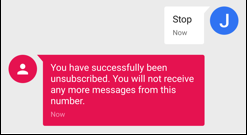
If a client texts “STOP”, “CANCEL”, or “END” back to the number, Twilio sends that notification to the Venture Technologies website. The website updates Prime to indicate that cell number no longer wishes to receive text messages. This effectively unchecks the checkbox on the client record. Twilio also blocks the attempt to send text messages to that number again and the client is notified of that:

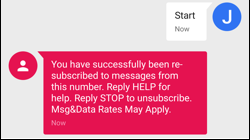
If the client decides later they do want to receive text messages, they can text “YES” or “START” to the number. Twilio sends that notification to the website and it updates the checkbox indicating it is okay to text to that number. Twilio will start allowing texts to that number again.

If a client calls the Twilio phone number, Twilio queries the Venture Technologies website requesting instructions on what it should do. The website queries Prime for the information entered in the Twilio setup. The response text is returned to Twilio. Twilio then speaks that message to the client.
Requirements
Users of Prime 16 on Venture do not need to meet any additional requirements. All requirements are met within the hosted version on Venture. An account with Twilio, together with a number assigned by them, and the ability to send and receive texts and phone calls at that number, is required to send text messages.
Outside of the options available within the Prime frontend, the system is NOT modifiable by the organization. Any desired modifications to its operation must be provided by KCW staff. In a self-hosted environment, in addition to the requirements of Prime 16, the following additional requirements must be met:
- Access 2010, 2013 or 2016
- SQL 2008 R2 or SQL 2014
- Server 2012 R2 capable of running ASPX websites with:
- IIS
- ASP
- .NET 4 properly installed and registered